
Create a video from a clear idea
A video request adds motion to a scene. Start with a supported preset or eligible image, then keep the action simple enough to remain consistent throughout the clip.
Choose the available video route
Build Your Video uses the presets and choices offered in that tool. An eligible image may have its own image-to-video option. These routes are different from watching a scripted Candy Shorts episode.
Check the selected format, preview and token requirement together. Do not assume that a still-image request includes a video conversion.
Describe one movement
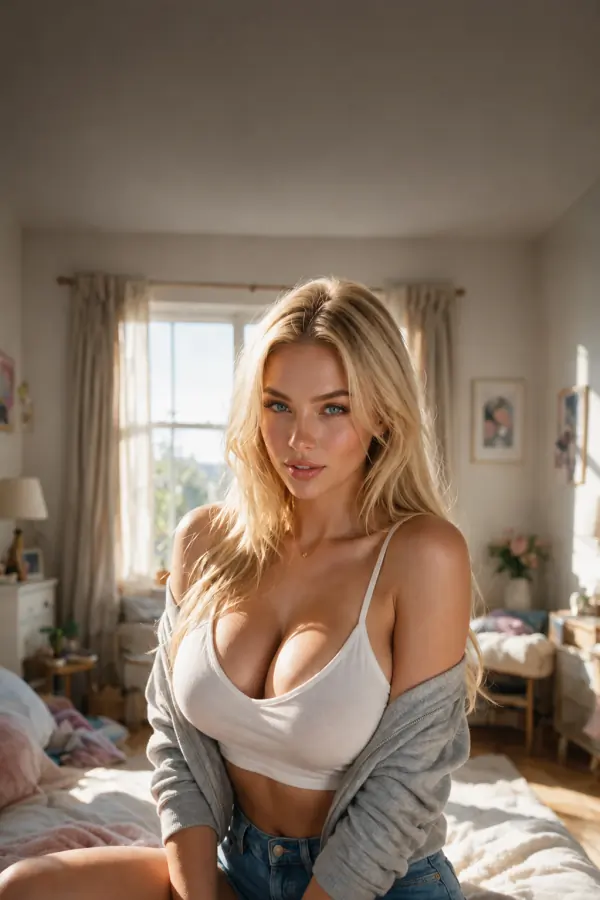
For a calm portrait scene, ask the adult character to turn toward the window and smile. Keep the location, outfit and lighting consistent. Several competing actions can make the intended motion unclear.
Use only inputs and likenesses you are authorized to use. The content rules apply to the starting material and the resulting clip.
Find and keep a finished clip
Look for the completed result in My Generations in the account that submitted the request. Open the result before using an available download control.
If generation stalls or the result cannot be opened, record the feature, approximate time and error. Check whether tokens were charged before submitting a duplicate request.
Questions and answers
Is Build Your Video the same as Candy Shorts?

No. Build Your Video creates a result from supported choices. Candy Shorts are pre-made scripted episodes organized into series.
Are video tokens included in unlimited text messages?
Unlimited text and metered media are different allowances. Check the token requirement displayed for the video action before confirming it.